Retopoflow
 PolyPen Help
Shortcut: 5, Ctrl+Alt+V
The PolyPen tool provides absolute control for creating complex topology on a vertex-by-vertex basis (e.g., low-poly game models). This tool lets you insert vertices, extrude edges, fill faces, and transform the subsequent geometry all within one tool and in just a few clicks.

Creating
Ctrl+LMB, Ctrl+LMB+Double |
: | insert geometry connected to selected geometry |
Selecting
LMB+Click, Shift+LMB+Click |
: | select geometry |
LMB+Drag, Shift+LMB+Drag |
: | paint geometry selection |
Ctrl+Shift+LMB+Click |
: | select along shortest path |
A |
: | select / deselect all |
Alt+A |
: | deselect all |
Transforming
G |
: | grab and move selected geometry |
LMB+Drag |
: | grab and move selected geometry under mouse |
Shift+S |
: | smooths edge flow of selected geometry |
R |
: | rotate selected geometry |
S |
: | scale selected geometry |
Other
Backspace, Delete, X |
: | delete/dissolve/collapse selected |
V |
: | rip selected edge |
Alt+V |
: | rip and fill selected edge |
Insertion Modes
Creating vertices/edges/faces is dependent on the selected mode and the selected geometry.
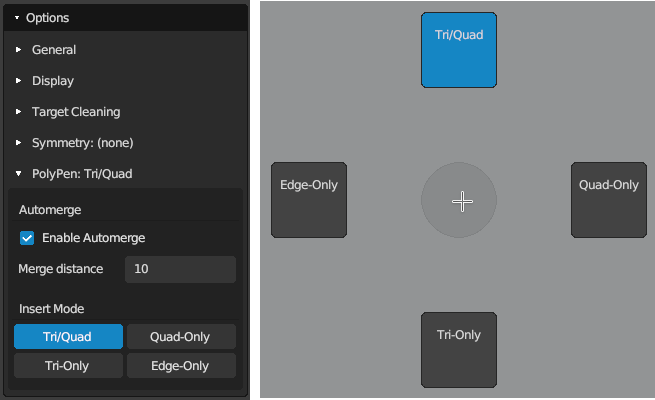
Switch between modes using the PolyPen Options, or hold Shift+Q, ~ to bring up a the PolyPen pie menu.
Triangle/Quad Insert Mode
The Tri/Quad mode is the normal mode for PolyPen.
- When nothing is selected, a new vertex is added.
- When a single vertex is selected, an edge is added between mouse and selected vertex.
- When an edge is selected, a triangle is added between mouse and selected edge.
- When a triangle is selected, a vertex is added to the triangle, turning the triangle into a quad
Selecting an edge and clicking onto another edge will create a quad in one step.
Quad-Only Insert Mode
The Quad-Only mode reduces the number of clicks for creating a strip of quads.
- When nothing is selected, a new vertex is added.
- When a single vertex is selected, an edge is added between mouse and selected vertex.
- When an edge is selected, an edge is added centered on the mouse, and a quad is added between the selected and newly added edges.
Selecting an edge and clicking onto another edge will create a quad in one step.
Triangle-Only Insert Mode
The Tri-Only mode is similar to the Tri/Quad mode, except without the step that turns the selected triangle into a quad.
- When nothing is selected, a new vertex is added.
- When a single vertex is selected, an edge is added between mouse and selected vertex.
- When an edge is selected, a triangle is added between mouse and selected edge.
Edge-Only Insert Mode
The Edge-Only mode inserts only edges.
- When nothing is selected, a new vertex is added.
- When a single vertex is selected, an edge is added between mouse and selected vertex.
Additional Tips
The PolyPen tool can be used like a knife, cutting vertices into existing edges for creating new topology routes.