Retopoflow
 Tweak Brush
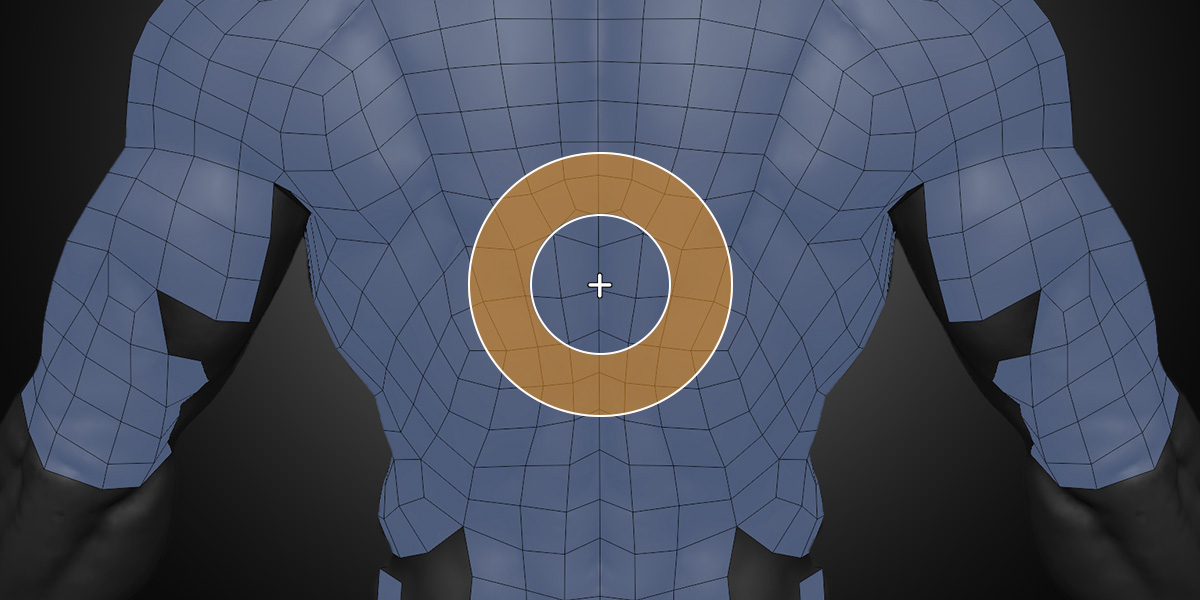
The Tweak Brush tool allows you to easily and interactively adjust vertex positions across the surface of the source mesh.
You can quickly use the Tweak tool while in any other Retopoflow tool with Shift Ctrl LMB Drag.
Transforming
To use the Tweak Brush, simply LMB Drag on vertices. Which vertices are affected can be controlled in the Masking settings.
Brush Settings
- Radius controls the size of the brush and can be adjusted with the hotkey
F - Strength controls how much the brush effects the geometry and can be adjusted with the hotkey
Shift F - Falloff controls how much the strength of the brush is feathered near the edges and can be adjusted with the hotkey
Ctrl F
Brush Types
- Grab transforms the vertices under the brush the same as pressing
Gto grab, but with a falloff. - Nudge pushes vertices around. This creates less overlapping than Grab, but is less reversible.
- Nudge’s Loops mode pushes around whole loops at a time and can be toggled by holding
Alt.
- Nudge’s Loops mode pushes around whole loops at a time and can be toggled by holding
- Pinch/Magnify expands or contracts vertices in an area like Blender’s sculpt brush of the same name.
Pinning
You can pin vertices in both Tweak and Relax by selecting them and using the Pin Selected operator in the tool settings. Unpin them by selecting them again and using Unpin Selected.
Pins only affect the brush tools and you can still transform pinned vertices using Grab, Rotate, or Scale.
Retopoflow’s pinning uses Blender’s vertex crease system under the hood to maximize performance and avoid having to keep a copy of the mesh in memory for custom drawing. Because of this, pins are only visible in vertex select mode, so be sure you are in that mode to check for pins if something appears stuck. Retopoflow will preserve vertex creases and allows you to use them separately for masking, but you may see strange behavior if you active adjust creases while inside of Retopoflow tools. If you need to adjust creases while Retopoflow tools are active, you can turn off the pinning system in the Tool Switching preferences and use another attribute (like seams or sharp edges) for pinning instead.
Masking Settings
The Tweak Brush has several options to control which vertices are moved and how.
Boundary
- Exclude does not affect vertices along the mesh boundary.
- Slide moves vertices along boundary but only by sliding them along the boundary loop.
- Include moves all vertices under the brush including those along the boundary.
Selected
- Exclude moves only unselected vertices.
- Only moves only selected vertices.
- All moves all vertices within brush regardless of selection.
Transform
- Corners allows moving boundary vertices that are inner or outer corners
- Seams allows moving vertices that are on an edge with a seam
- Sharps allows moving vertices that are on an edge that is marked sharp
- Creases allows moving vertices that have a vertex crease or are on an edge that is creased
- Pinned allows moving vertices that are marked as pins by Retopoflow
- Occluded allows moving all vertices within the brush regardless of whether it is behind another mesh or not.
Selection
Even though LMB to select is not available while using the Tweak Brush, you can still select and deselect by using Shift LMB. You can deselect all by clicking in empty space outside of the source object. Box Select B and Lasso Select Ctrl Right Mouse Drag are always available as well.
General selection options for all tools can be read about on the Retopoflow Mode docs page under Selection.